To ensure Smith.ai receptionists can answer your calls, you’ll need to forward your business line to your Smith.ai number.
Most small business users can set up forwarding in under 30 seconds using star codes from their phone.
More advanced routing (e.g., call groups, IVR, and call flows) is also supported—see below.
Recommended Method (Fastest)
Forward Using Your Phone (Dial Pad Method)
Pick up your phone (desk phone or mobile app enabled with Nextiva)
Dial:
*72 + your Smith.ai number + #
Example:*72 855-888-1234#Press Call
Listen for confirmation and hang up
Test by calling your business number
Turn Off Forwarding
Dial
*73Press Call
Use this option if you're a single user or just need all calls routed to Smith.ai quickly.
⚙️ Alternative: Set Up Forwarding in Nextiva Dashboard
Use this method if you are the admin or if multiple users share a line.
Set Up Call Forward Always (Single User)
If you are the Administrator, you can set up call forwarding for a User or a Call Group.
Setting Up Call Forward for a User
Navigate to your Client Login to log in to NextOS.
From the NextOS Home Page, select Voice.
From the Nextiva Voice Admin Dashboard, go to Users and select Manage Users.
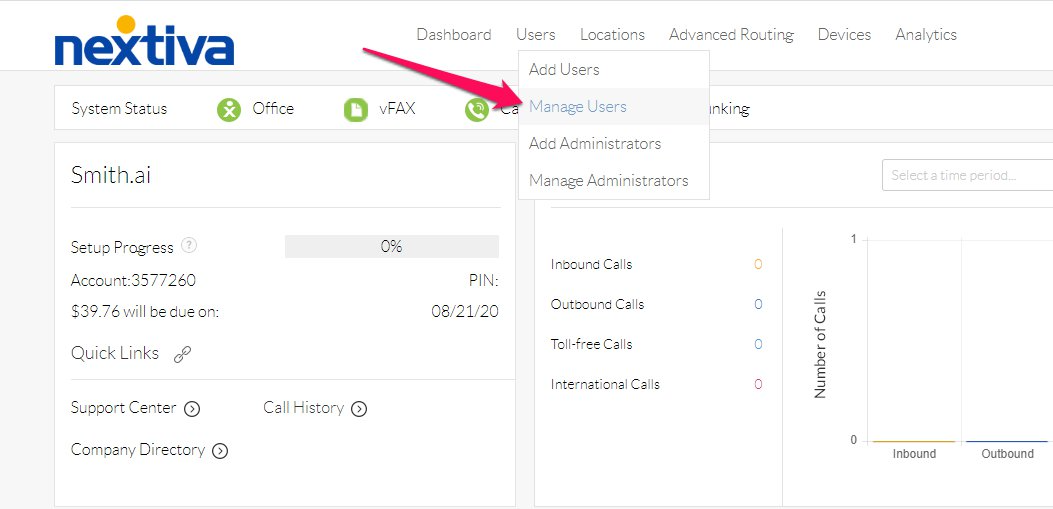
Hover over the User you want to forward and click the Pencil icon on the right.

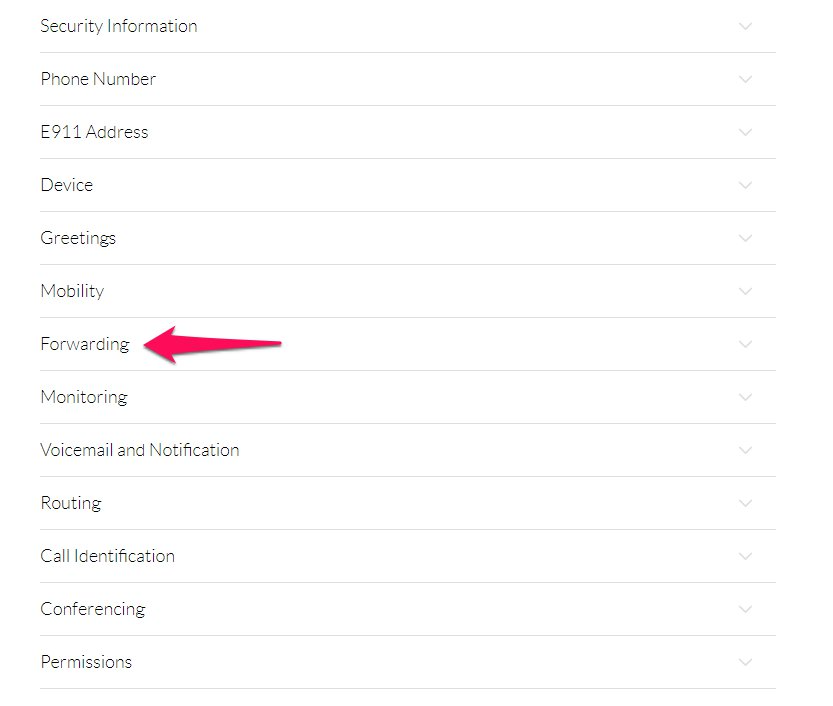
Scroll down and click the Forwarding section.
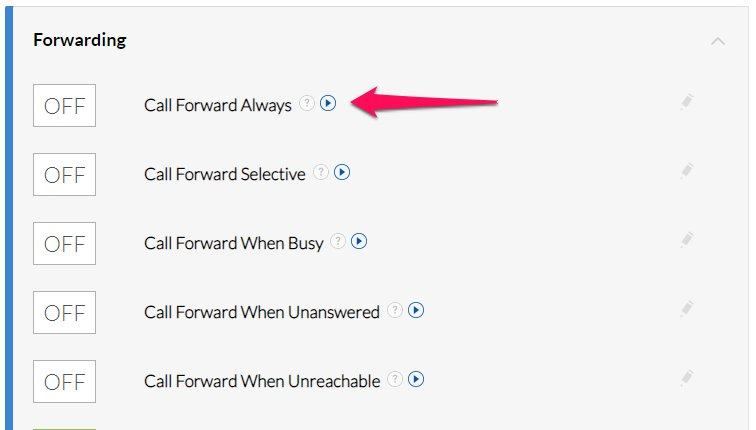
Click on Call Forward Always.
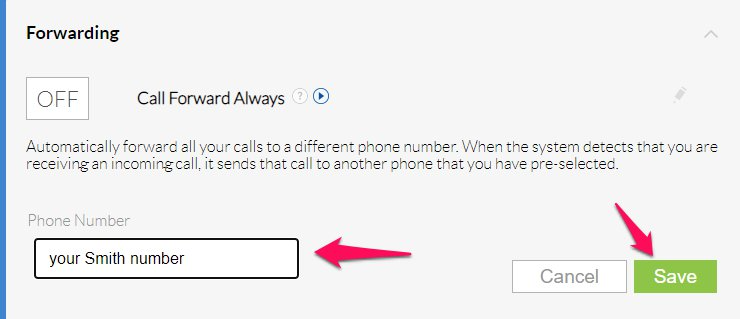
In the Phone number box, enter your Smith number to forward the calls to. Then click Save.
Make sure to then click the ON toggle for Call Forward Always to enable it.

Setting Up Call Forward for a Call Group
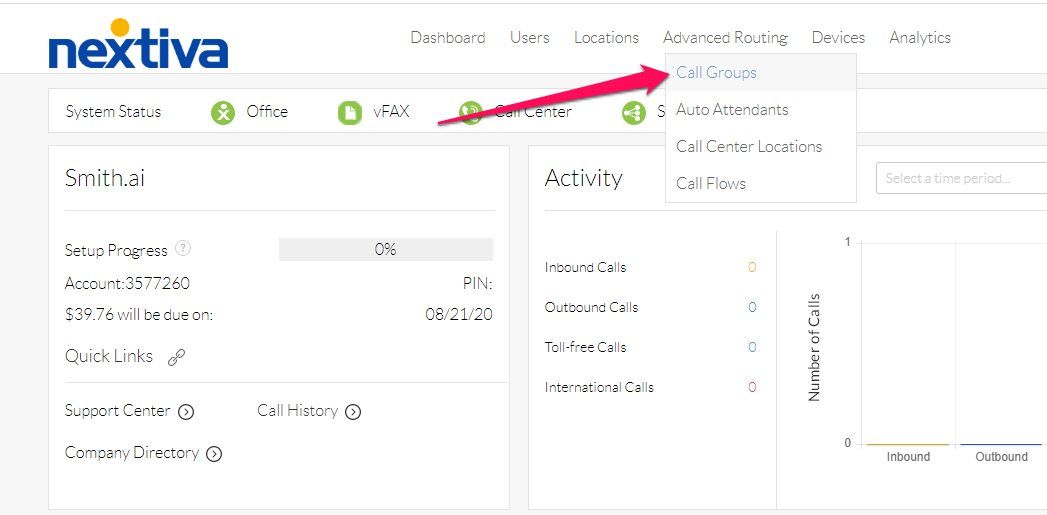
From the Nextiva Voice Admin Dashboard, go to Advanced Routing and click Call Groups.
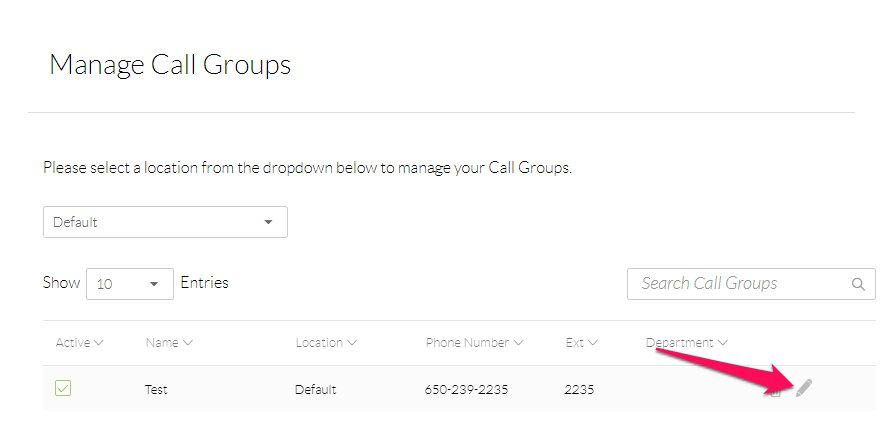
Hover over the name of the Call Group you want to forward, and click the Pencil icon.
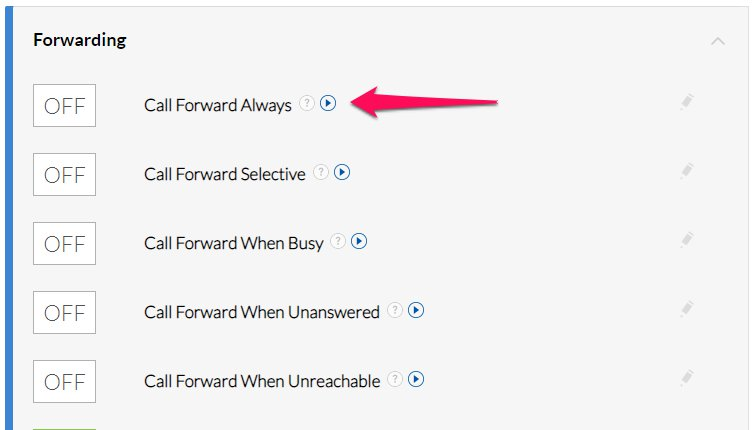
Scroll down to the Forwarding section. Click on Call Forward Always.
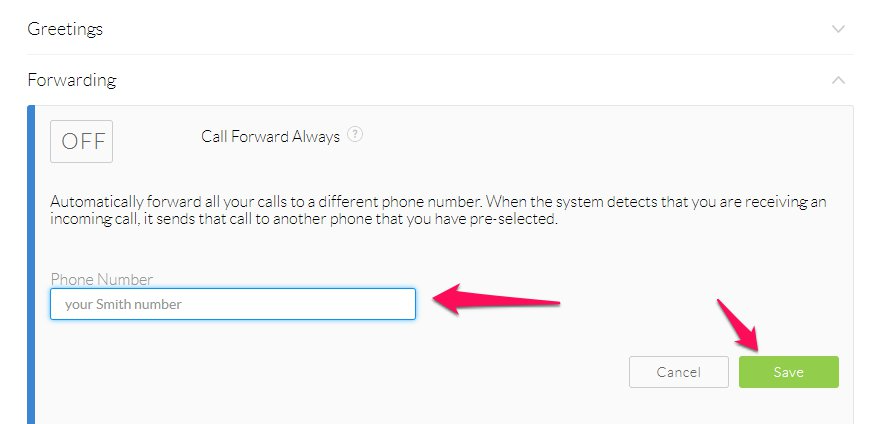
In the Phone Number box, enter your Smith to forward calls to, and click Save.
Make sure to then click the ON toggle for Call Forward Always to enable it.

Setting Up Call Forward as a User
Navigate to your Client Login to log in to NextOS.
On the NextOS Home Page, select Voice.
From the Nextiva Voice User Dashboard, click Features in the top-right corner.
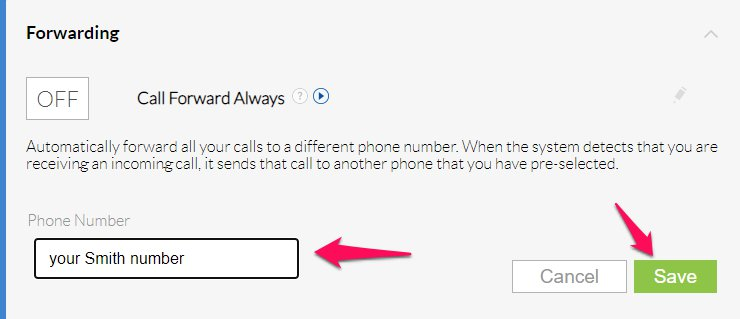
Go to the Forwarding section then click on Call Forward Always.
In the Phone Number box, enter your Smith to forward calls to, and click Save.
- +-
Make sure to then click the ON toggle for Call Forward Always to enable it.

Nextiva also offers Call Flows, and the following instructions walk you through how to use them to forward your calls.
Call Flows -
Log into your account and go to the Voice settings.
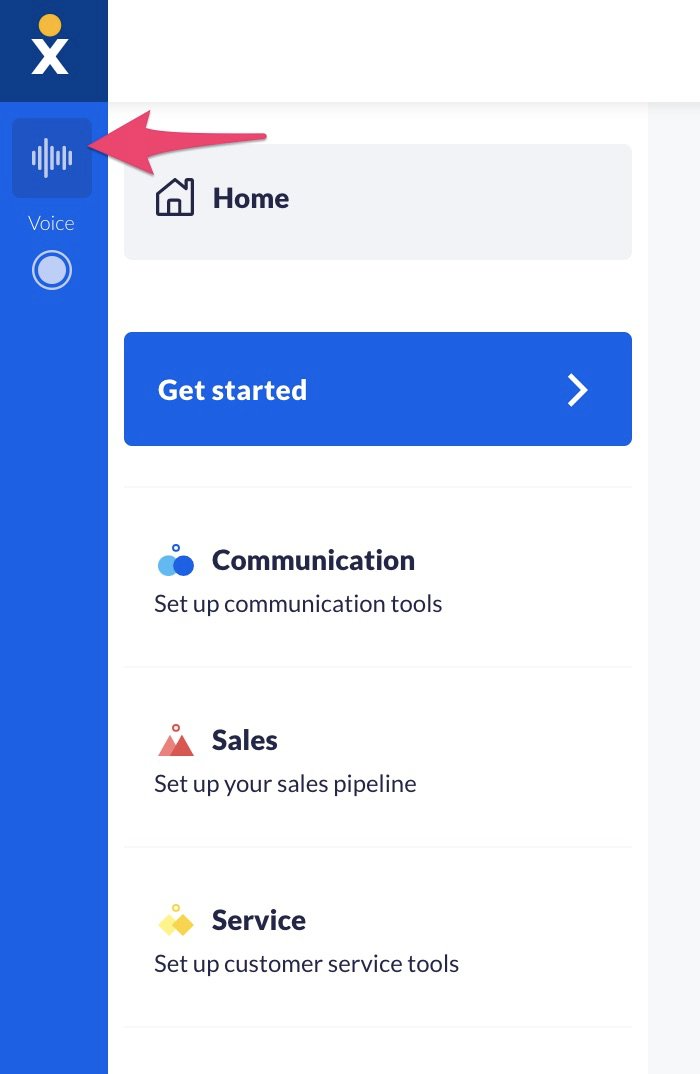
In the left menu click on Voice, and then go to Call Flows to create a new call flow.
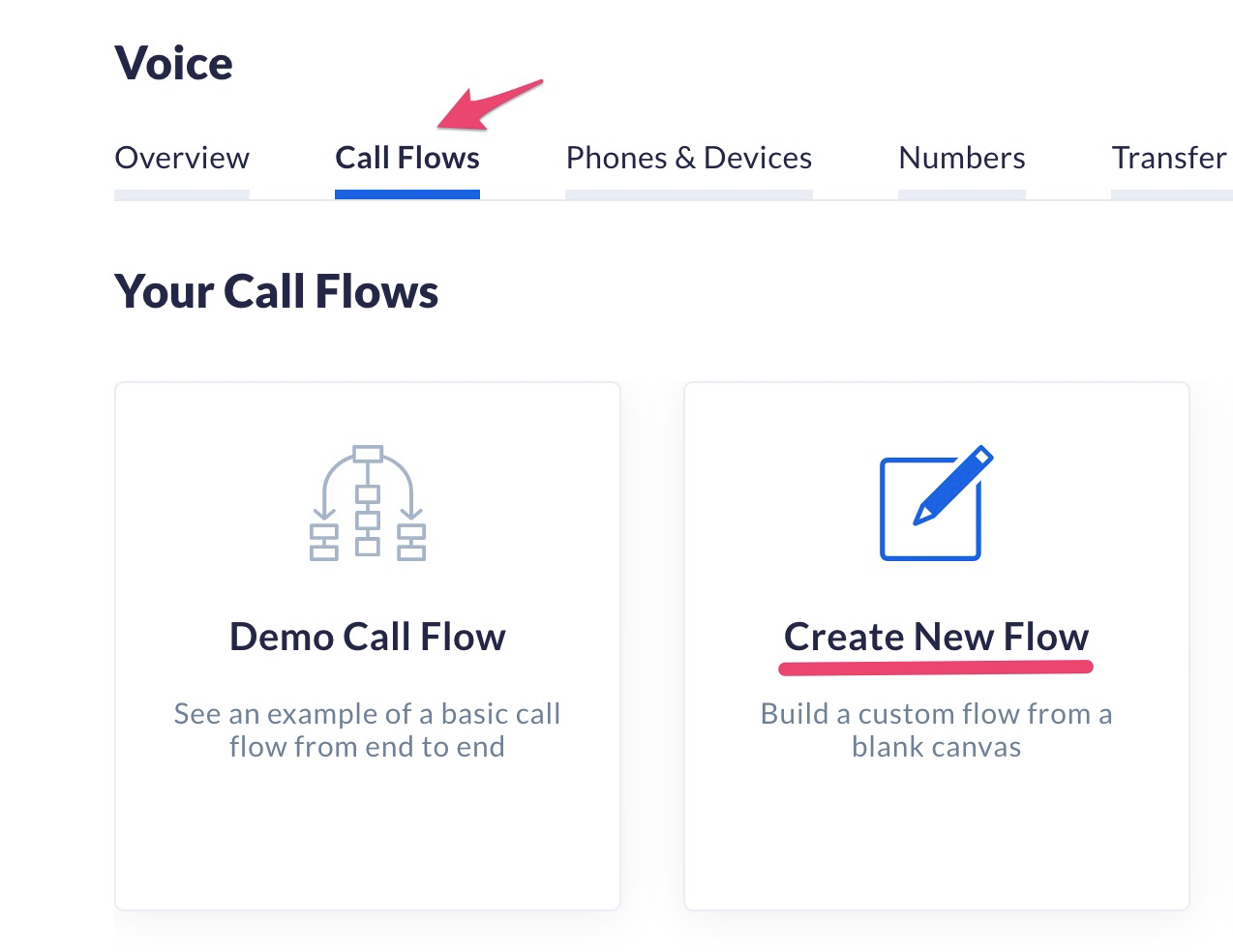
Click on the phone icon to set the number assigned to the call flow.
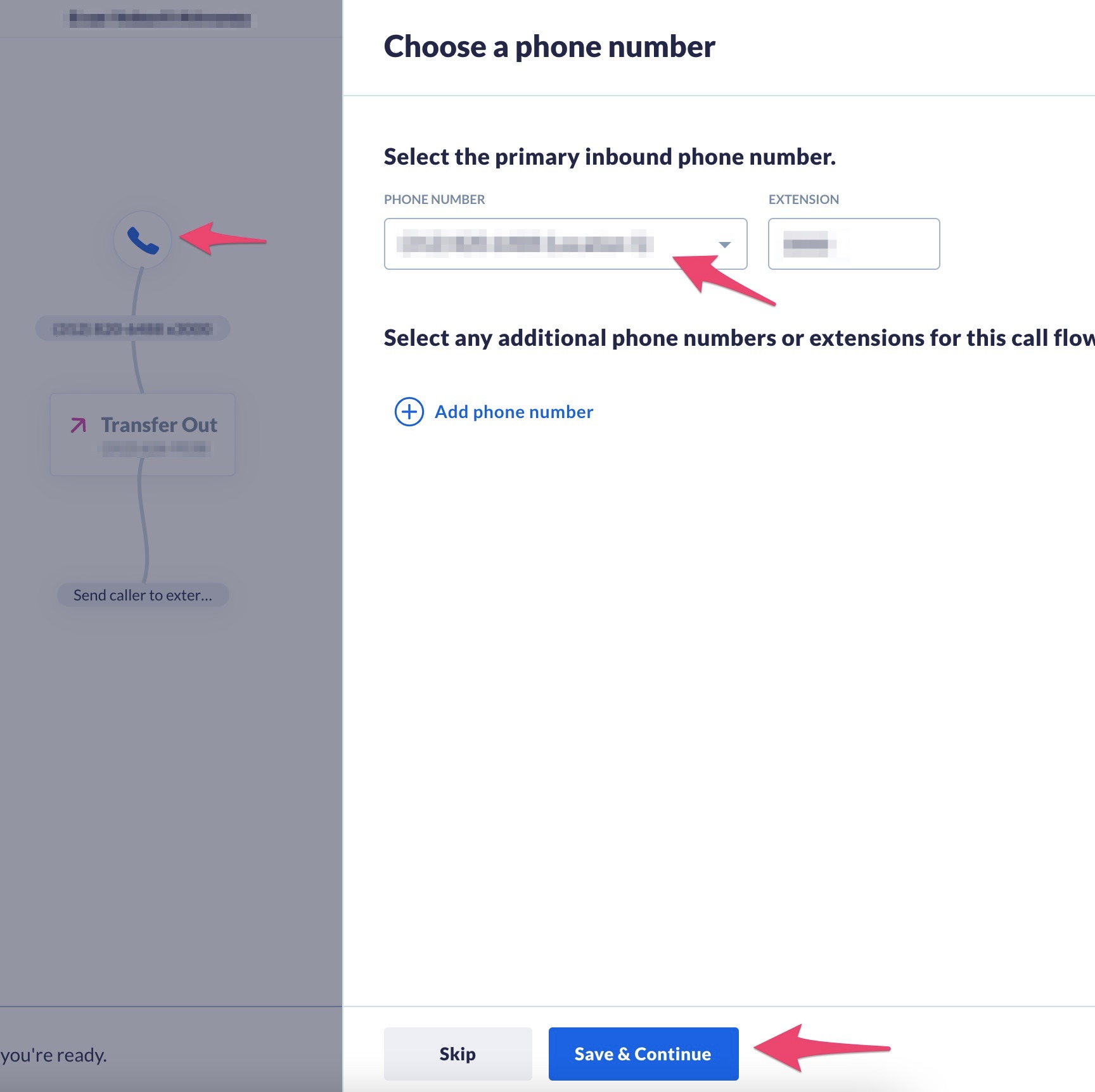
In the step that you want to forward to your Smith number, use a Transfer out node. Type in your Smith number, and click on the Save & Continue button.
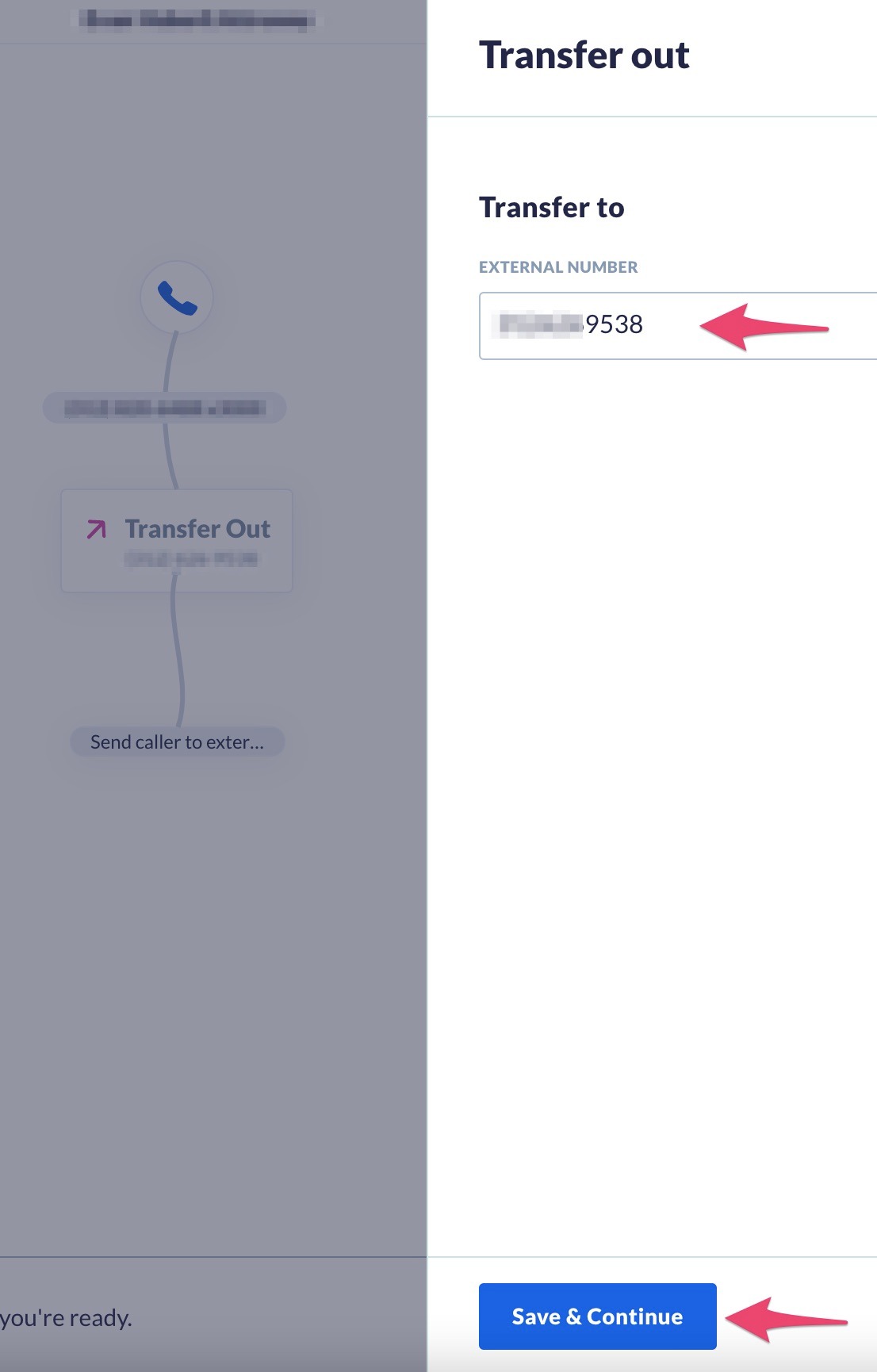
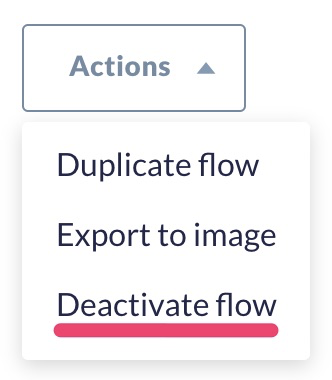
Activate your Call Flow, and click Save.
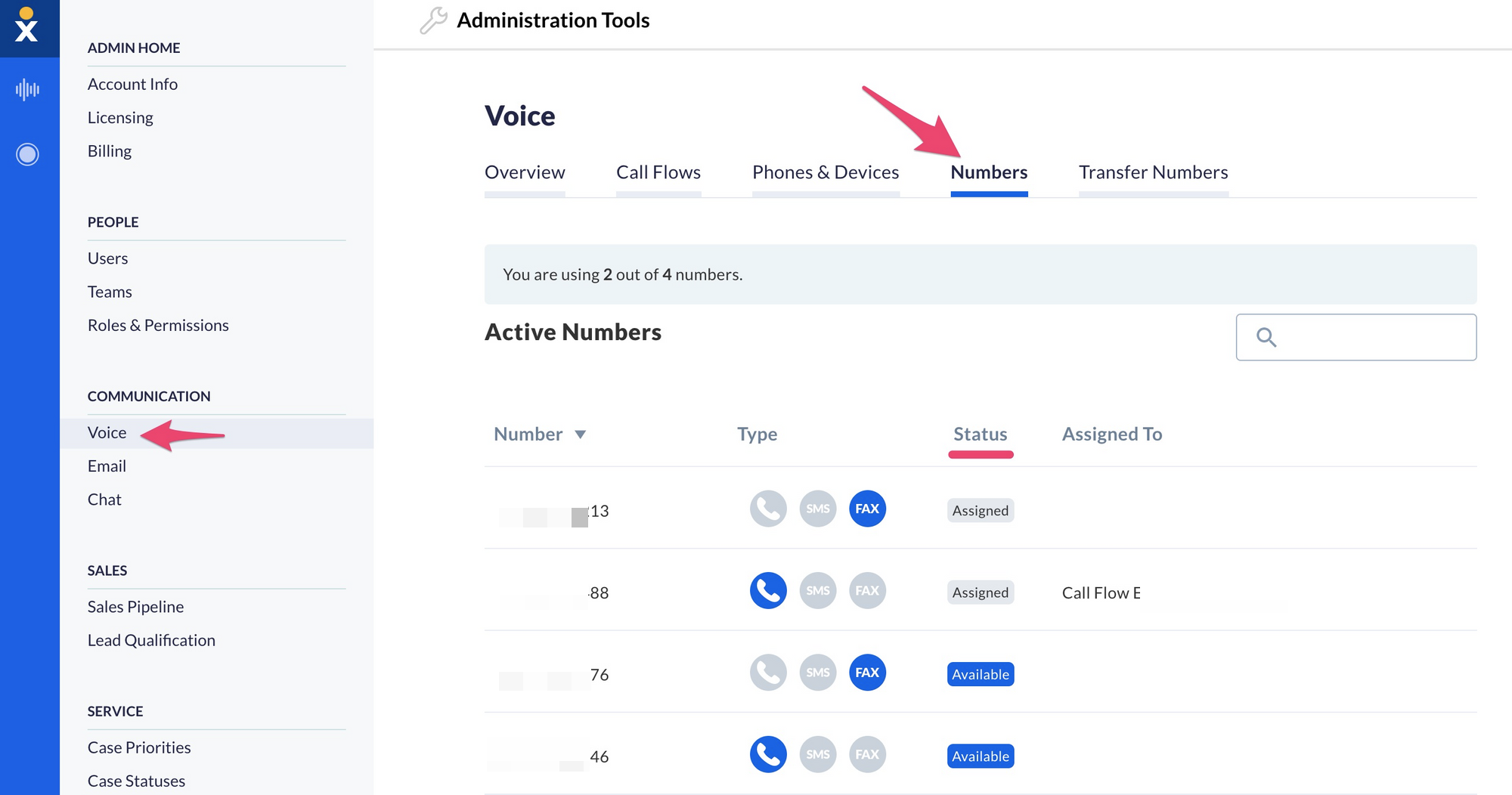
You can review and check your Nextiva numbers under the Numbers menu. You'll be able to see if they are Assigned, and what type of line it is.
Questions? Contact us!
If you're already a Smith.ai client and need help, please email us at support@smith.ai or call us at (650) 727-6484 for assistance.
If you're not yet a Smith.ai client, please schedule a free consultation to get started with our virtual receptionist services or email us at sales@smith.ai. We'll help you select the best plan to match your business’s growth goals and budget.
Was this article helpful?
That’s Great!
Thank you for your feedback
Sorry! We couldn't be helpful
Thank you for your feedback
Feedback sent
We appreciate your effort and will try to fix the article