Goals and scenarios tell Quality Studio what a good call looks like for your business. Without them, there's nothing to evaluate against. This article walks you through creating your first goal and scenario so you can start running calls.
What's covered in this article
What goals and scenarios are
How to create a goal
How to create a scenario
Using templates
Generating scenarios from your call history
Frequently asked questions
What goals and scenarios are
A goal is a high-level performance objective for your AI Receptionist — what you need it to accomplish on calls.
Examples:
Book appointments
Qualify leads
Route calls to the right person
Collect caller information
A scenario belongs to one goal and defines the criteria or key result of a specific type of call. Each scenario has two parts: what the caller does, and what your AI Receptionist should do.
Example scenarios under Book appointments:
A first-time caller asking about services and wanting to schedule a consultation
An existing client who needs to reschedule but has a time conflict
Note: The more detail you put into a scenario, the more accurate and useful your evaluation checks will be.
How to create a goal
Log in to your AI Receptionist dashboard at app.smith.ai/vr/
Select Quality Studio from the left-hand toolbar.
Click Create goal.
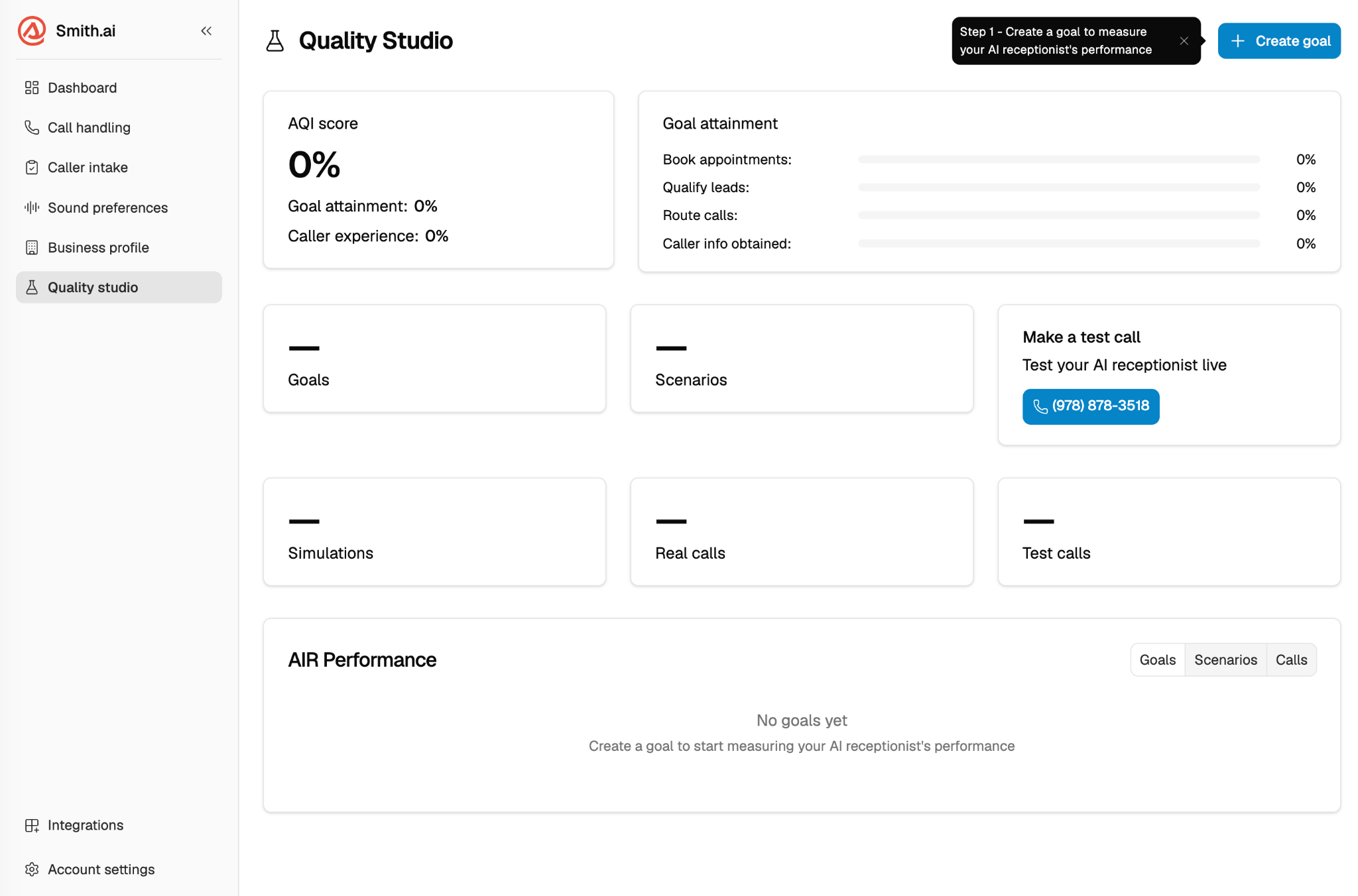
Give the goal a specific name (e.g., Book appointments rather than Scheduling).
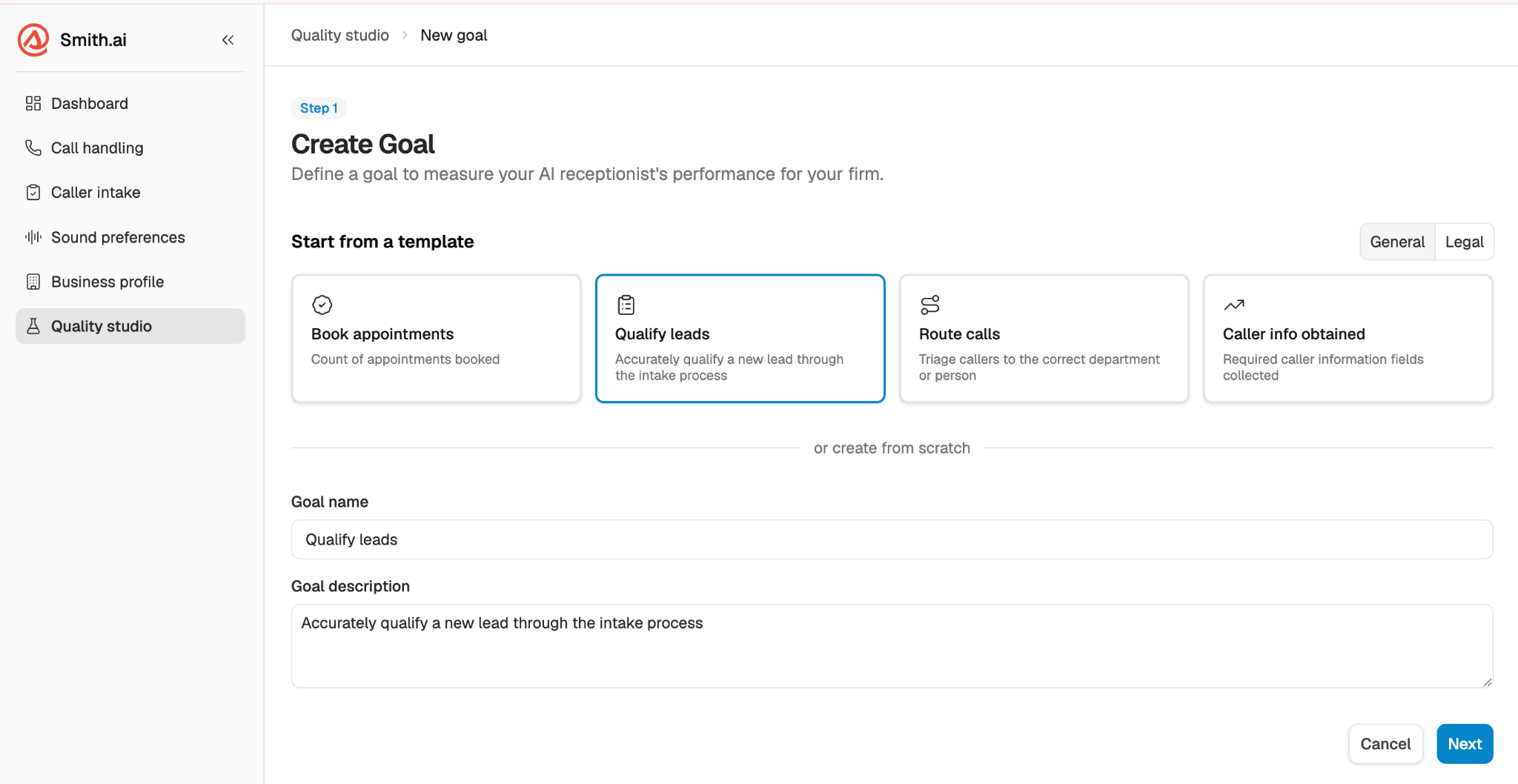
Add at least one scenario to the goal before saving.
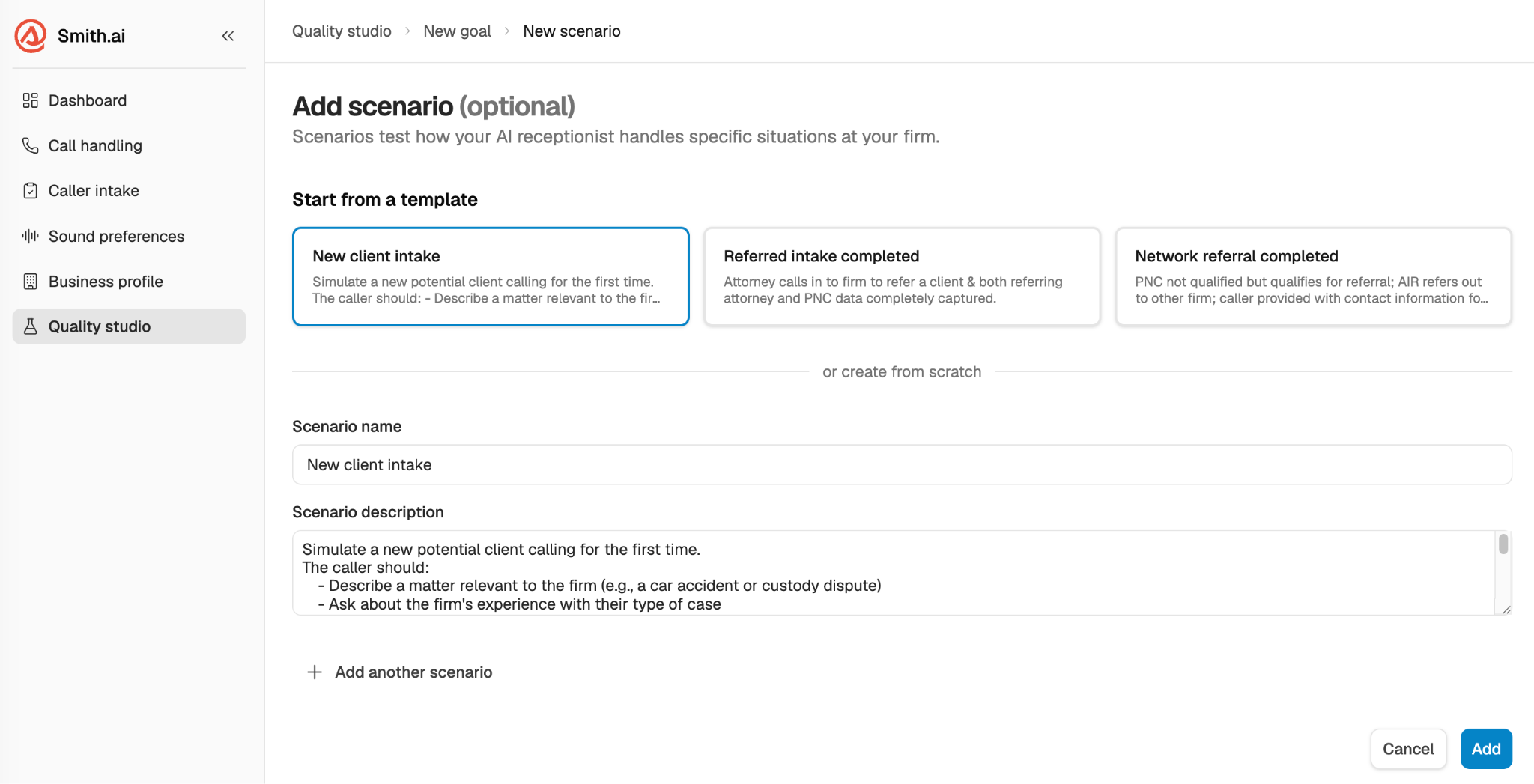
How to create a scenario
After creating a goal, you'll be prompted to add your first scenario.
Click Add Scenario inside your goal.
Give the scenario a name, e.g., New client asking about pricing.
Fill in the Scenario description section by describing:
Why this caller is calling
What they ask or say
Any complications or changes (e.g., they change their mind)
What information they provide
Fill in the Receptionist section, describe:
What the AI Receptionist needs to accomplish
What information to collect
How to handle the caller's specific situation
How the call should end
Click Save.
Example: Book appointments goal, New lead inquiry scenario
Caller should:
Ask general questions about services offered
Explain their interest in a specific service
Request pricing information
Decide to schedule the soonest available appointment
Receptionist should:
Be helpful and informative
Capture contact details
Offer the next available appointment
Confirm booking details
Using templates
Quality Studio includes a template library to help you get started faster. To use a template, select Use a template when creating a new goal or scenario, then customize it to match your business.
For legal firms:
New lead inquiry / Existing client scheduling
New client intake (qualify leads)
Billing matter / Practice area routing
Case update from existing client
Attorney referral intake
For general businesses:
New lead inquiry / Existing client scheduling
New client intake (qualify leads)
Billing matter / Multi-service-type routing
Detailed message from existing client
Generating scenarios from your call history
If you have existing call history with Smith.ai, you can generate scenario suggestions based on your real past calls instead of writing them from scratch.
Inside Quality Studio, look for the Generate from call history option.
The system reviews your recent calls and suggests scenarios based on what callers actually asked and needed.
Review the suggestions and select the ones you want to add.
Note: This feature requires existing call history. Suggestions may take a few minutes to appear.
Frequently asked questions
How many goals and scenarios should I create?
Start with one or two goals and two to three scenarios each. A small, focused set gives you clear results and a manageable loop to close. You can expand over time as you gain confidence.
Do I need to finish all my scenarios before running a call?
No. You can run a simulated call or test call as soon as you have one goal with one scenario. Starting small and iterating is the recommended approach.
Can I edit a scenario after I've already run calls against it?
Yes. You can edit a scenario at any time. Calls already evaluated against the previous version won't be re-scored, but future calls will use the updated scenario.
Was this article helpful?
That’s Great!
Thank you for your feedback
Sorry! We couldn't be helpful
Thank you for your feedback
Feedback sent
We appreciate your effort and will try to fix the article