Service-aware intake lets you tailor questions, data capture, and actions to each service offered — so you achieve the best outcome for every new lead.
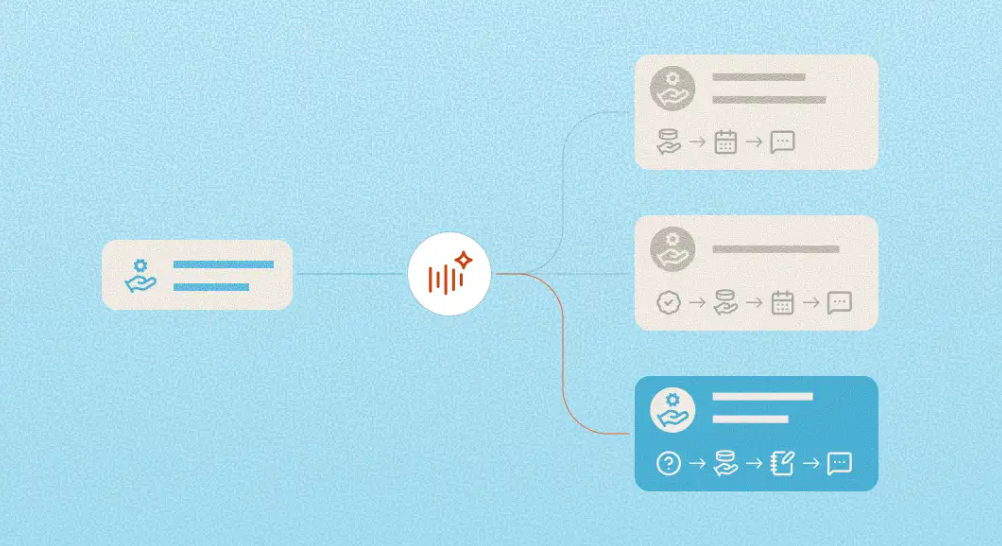
By default, AI Receptionist handles all new leads using a single, shared call flow. When service-aware intake is enabled, you can give each service its own unique setup within your Potential new clients call playbook. Each service can be configured independently with the following options:
Location qualification: Specify whether location is a qualifying factor for this service and what the criteria are.
Custom qualification questions: Add yes/no questions specific to this service type to determine if the caller is a good fit.
Caller information to collect: Choose which details AI Receptionist should gather from the caller for this service (e.g., email, business name, or your own custom fields).
Call outcome: Select what AI Receptionist should do when the caller qualifies for this service:
End the call — collect caller details for follow-up
- Transfer the call — route to a specific person or team
Schedule an appointment — link a specific calendar URL for booking this service
Choosing an intake mode
When you open your Potential new clients & customers call playbook, you'll see two options under How do you want to configure your services?
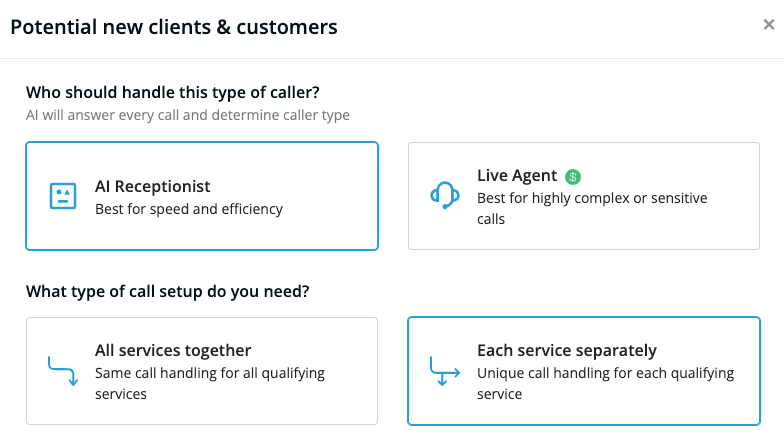
How to switch modes
Take note of any settings you’ve already customized for Potential new clients
Click to select your preferred intake mode
Complete any further edits, then click Save to apply your changes immediately
Important: Switching from Each service separately back to All services together permanently deletes your per-service configurations. We recommend noting down any custom settings you want to preserve before making this change.
How to configure service-aware intake
Step 1: Enable service-aware intake
Navigate to Caller Intake in your AI Receptionist dashboard.
Open your potential new clients & customers call playbook by clicking Configure.
Under How do you want to configure your services?, select Each service separately.
Any existing qualifying services will automatically appear as individual services in the list, pre-filled with your existing settings as a starting point.
Step 2: Add a qualifying service
If you had no services configured, add your first service by entering the service name in the blank text box, then click Save.
To add a new service, click + Add another and type the service name (e.g., Personal Injury or HVAC Repair), then click Save.
Step 3: Configure intake for your first service
Click the Configure link on any qualifying service to open its setup modal
Add any qualifying locations or questions (optional)
Select what information should be collected from the caller
Input any additional information you’d like to collect in the text fields (optional)
Select what action AIR should take next and configure as needed
Set up a follow-up text message to be sent to the caller after the call (optional)
Click Save to in the service’s setup modal to save service-specific changes
Changes will not go live until you have saved the settings in the main Potential new clients call playbook.
Note: AI Receptionist can use a unique calendar for each service, up to a maximum of 6 unique calendar links within your account.
Step 4: Configure the rest of your services
Tip: If two or more of your services share similar intake requirements, set one up fully, then use Duplicate to copy it. You'll only need to adjust the differences, saving time on setup.
Proceed to add and configure your remaining services.
When you're done configuring a service, click Save within the service modal before moving to the next one.
Once all services are configured, click Save on the main playbook modal to apply your settings.
From there, AI Receptionist will begin handling calls according to each service's custom intake flow immediately.
Note: If you try to close a service's configuration modal without saving, you'll be prompted to either discard changes or return and save. Unsaved changes will be lost if you discard.
Managing services
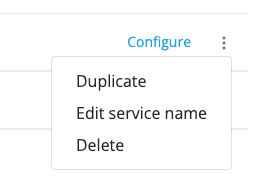
Duplicate a service
To copy a service and its configuration to a new service item, click ⋮ and select Duplicate. The copy will be named [Original Name] Copy and can be edited from there.
Edit a service name
To edit a service's name, click the ⋮ (kebab) menu on its card and select Edit service name.
Delete a service
To delete a service, click ⋮ and select Delete. A confirmation modal will appear — click Delete to confirm.
Note: Deletion cannot be undone.
Frequently asked questions
Is service-aware intake available for my existing clients or only for new leads?
Service-aware intake is currently available only within the Potential new clients & customers call playbook. It does not apply to existing-client call handling at this time.
Can each service have its own scheduling link?
Yes! When you configure a service with Schedule an appointment as the call outcome, you can assign a unique calendar URL to that service, up to a maximum of 6 calendar URLs within your account.
Can each service have its own SMS follow-up message?
Yes. When using Each service separately, each service can have its own unique SMS follow-up message configured independently.
Does this support nested services, like multiple case types within a practice area?
Yes, as long as the level of specificity you need is reflected in the service name. For example, a personal injury firm could set up services named Workers' Comp, Car Accident, and Medical Malpractice — each with its own configuration.
What are some examples of service-aware intake in action?
Here are some common use cases:
Law firms: A firm handling personal injury, family law, and business litigation can configure unique qualification questions and different call outcomes (e.g., schedule directly vs. take a message) for each practice area — without asking callers redundant or off-topic questions.
Home services businesses: A company offering plumbing, HVAC, and electrical can tailor location qualification, service-specific data collection, and individual calendar links for each trade.
Real estate offices: Buyer leads, seller leads, and rental inquiries can each flow through distinct intake paths with the right questions and next steps.
Multi-specialty wellness practices: Different specialties or service lines can have their own screening questions and scheduling flows.
What happens if a caller mentions multiple services in one call?
AI Receptionist handles multi-service calls the same way it did before this feature was introduced. There is no change to that behavior with service-aware intake.
If I switch from All services together to Each service separately, do I lose my existing setup?
No — your existing configuration is automatically copied into each service as a starting point. You'll keep all of your settings and can edit them service by service from there.
If I switch from Each service separately back to All services together, do I lose my service-specific configurations?
Yes. Switching back permanently deletes your per-service configurations. A warning modal will appear before you confirm, but this action cannot be undone.
Does switching intake modes affect my callers' experience immediately?
Changes take effect once you save your playbook. After saving, new calls will be handled according to your updated configuration.
Can I use service-aware intake to route callers based on location rather than service?
The primary trigger for each intake flow is the service a caller requests, but you can use location qualification within each service's configuration to further refine how AI Receptionist handles callers.
Still have questions? Our team is here to help. Chat with us using the button at the bottom right of your dashboard, email us at support@smith.ai, or call us at (650) 727-6484.
Was this article helpful?
That’s Great!
Thank you for your feedback
Sorry! We couldn't be helpful
Thank you for your feedback
Feedback sent
We appreciate your effort and will try to fix the article