FAQs are how your AI receptionist answers common caller questions accurately and consistently. You can add FAQs to your account in two ways:
Start by adding FAQs yourself in the dashboard.
Let self-healing FAQs surface gaps from real calls to suggest more.
What's covered in this article
Example FAQs
How to add FAQs manually
How self-healing FAQs work
Reviewing suggestions in your dashboard
Editing or dismissing suggestions
Responding to the daily FAQ email
Frequently asked questions
Example FAQs
Here are a few examples of the kind of questions that work well as FAQs:
Q: Do you offer consultations?
A: We offer a free thirty-minute consultation for new clients.
Q: What payment methods do you accept?
A: We accept bank transfers and most major credit cards.
Q: What is your fax number?
A: 555-123-4567
Note: You don't need to add your business location or hours here. Those are pulled from the Business Address and Business Opening Hours sections of your Business Profile page.
How to add FAQs manually
Log in to your AI Receptionist dashboard.
Navigate to the Business Profile page from the left-hand toolbar.
Scroll down to the Frequently Asked Questions section and click Edit.
In the pop-up modal, enter the questions your callers commonly ask along with a concise answer you'd like your AI receptionist to use.
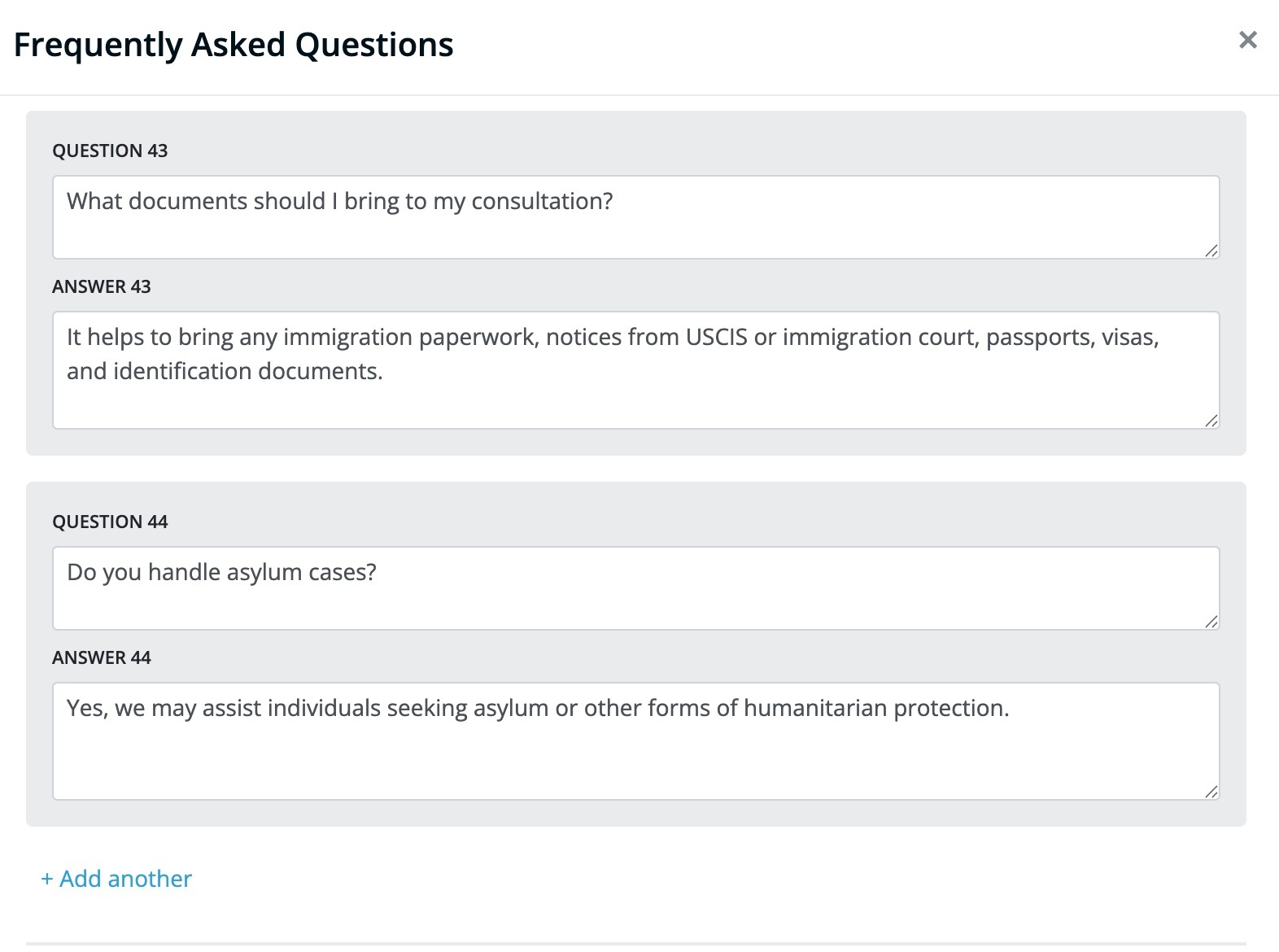
To add more questions, click “Add another”.
When you're done, click “Save.” A green confirmation message will appear once your changes are saved.
Note: At this time, you're limited to 50 questions total, and AI-suggested FAQs count toward this 50-question limit—see the FAQ section at the end of this article for more on what to do if you're approaching it.
How Self-Healing FAQs work
Self-healing FAQs are built into your AI Receptionist account. When a caller asks a question your AI receptionist can't confidently answer, the system logs the moment as a knowledge gap and turns it into a suggested FAQ for you to review.
Once you provide an answer, your AI receptionist uses it on the next call where the same question comes up—so your FAQ library keeps getting more complete over time, without you having to comb through call transcripts to find what's missing.
You'll see FAQ suggestions in two places:
Your AI Receptionist dashboard, under Frequently Asked Questions on the Business Profile page.
A daily email summarizing new questions from recent calls.
You can respond from either place. Once you provide an answer to suggested questions, the system adds it to your FAQ library, and your AI receptionist can use it on future calls.
Reviewing FAQ suggestions in your dashboard
- Navigate to the Frequently Asked Questions section of the Business Profile page in your dashboard.
- If you have new suggestions waiting, you'll see a line beneath the section that reads, “You have [number] suggestions for questions to answer based on recent caller activity.”
- Click that line to open the Suggestions from calls view.
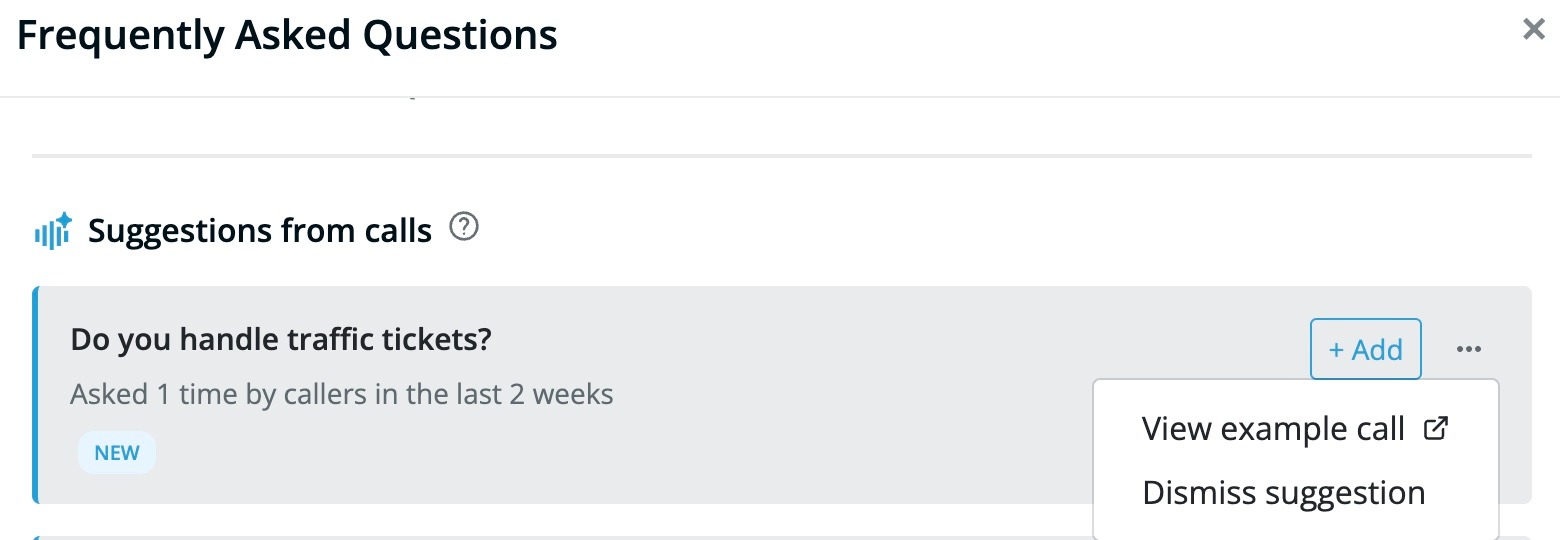
Each suggestion shows:
The question text
How often the question has come up in recent calls
Three available actions: Add, view an example call, or dismiss.
Editing or dismissing suggestions
From the Suggestions from calls view in your dashboard, you can take three actions on any suggested FAQ:
Responding to the daily FAQ email
If your AI receptionist surfaces new FAQ suggestions, you'll also receive an email summarizing them. The email arrives only when the AI receptionist identifies a question it can’t answer, so it won't clutter your inbox.
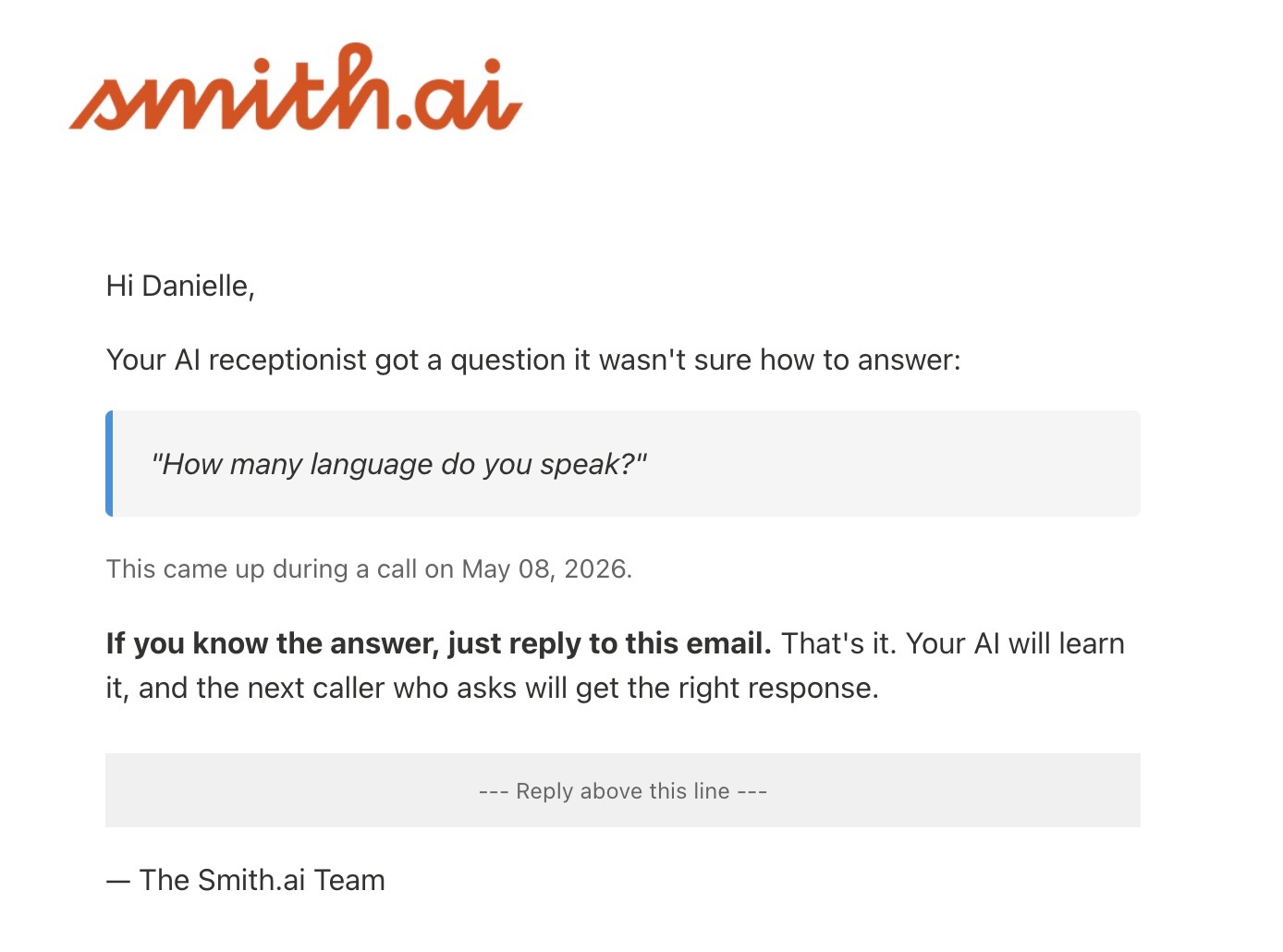
To respond:
- Open the email and review the question your AI Receptionist couldn't answer.
- Reply directly to the email with your answer in the body of the message.
- Send. The system reads your reply, extracts the answer, and adds the FAQ to your library automatically.
Note: Your reply is the approval step — nothing is officially added to your FAQ library until you respond with an answer.
Frequently asked questions
Do AI-suggested FAQs count toward my 50-question FAQ limit?
Yes. Suggested FAQs that you add to your library count toward the 50-question limit, just like FAQs you add manually. If you're getting close to the limit, review your existing FAQs and remove or consolidate any that are outdated or redundant before adding new ones.
What happens if I don't reply to a daily FAQ email?
Nothing changes in your account. The suggestion stays in the Suggestions from calls view in your dashboard, where you can respond to it whenever you're ready. Your AI Receptionist will continue handling calls as usual in the meantime.
Can I see the original call that triggered a suggestion?
Yes. In the Suggestions from calls view, click the three-dot menu on any suggestion and select View example call to see the call where the question came up. Reviewing the original call can help you write a more useful answer.
Will AI Receptionist ever publish an FAQ without my approval?
No. Suggested FAQs only get added to your library after you provide an answer — either by replying to the daily email or saving an answer in the dashboard. Nothing is added automatically.
Why am I getting suggestions for questions I've already answered?
If a suggested question looks similar to an existing FAQ, your existing answer may not be matching how callers are phrasing the question. Open your FAQ library and check whether the wording of your existing FAQ matches the way callers actually ask. You can dismiss the suggestion if your existing FAQ already covers it, or use it as a prompt to refine the wording of the original.
What if a suggested FAQ is asking something I don't want my AI Receptionist to answer?
Dismiss the suggestion. Some questions — like legal or medical advice, or anything outside the scope of what your front office should handle — aren't appropriate for an AI Receptionist to answer. Dismissing tells the system you don't want this question handled, and the suggestion is removed.
Questions? Contact us!
If you're already a Smith.ai client and need help, email us at support@smith.ai or call us at (650) 727-6484 for assistance.
If you're not yet a Smith.ai client, schedule a free consultation to get started with our AI Receptionist or email us at sales@smith.ai. We'll help you select the best plan to match your business's growth goals and budget.
Was this article helpful?
That’s Great!
Thank you for your feedback
Sorry! We couldn't be helpful
Thank you for your feedback
Feedback sent
We appreciate your effort and will try to fix the article